YouTube Video Gallery & Playlist Synchronization for OpenCart
Engineered by Dev Global Solutions, this module enables automatic synchronization and display of YouTube video channels, curated playlists, or standalone videos across your OpenCart store. Powered by the YouTube Data API v3, it dynamically pulls video content into lightweight storefront galleries without requiring manual uploads or individual video configurations.
Key Features & Functional Highlights
-
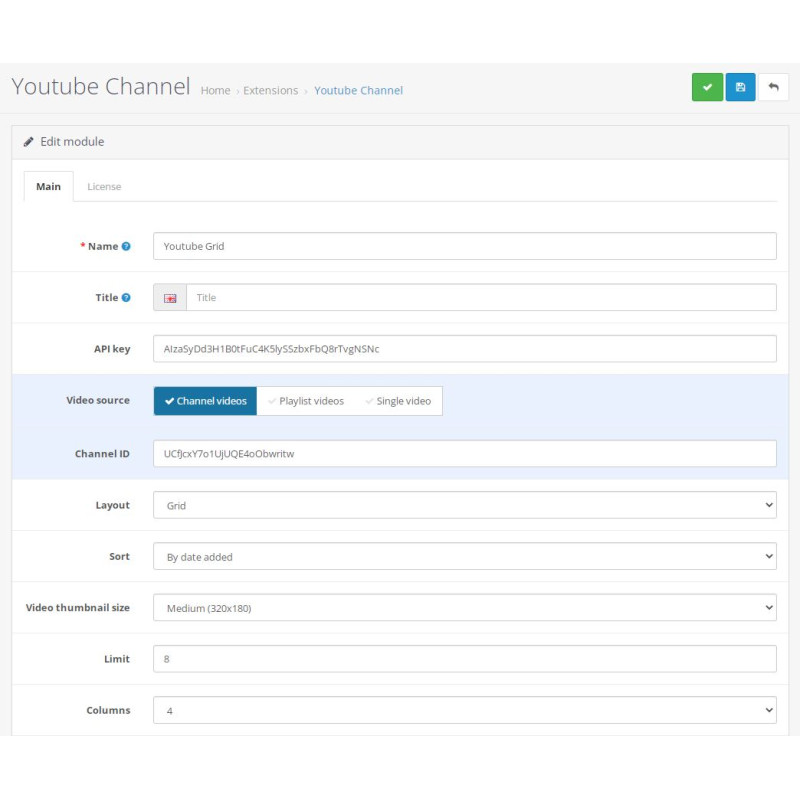
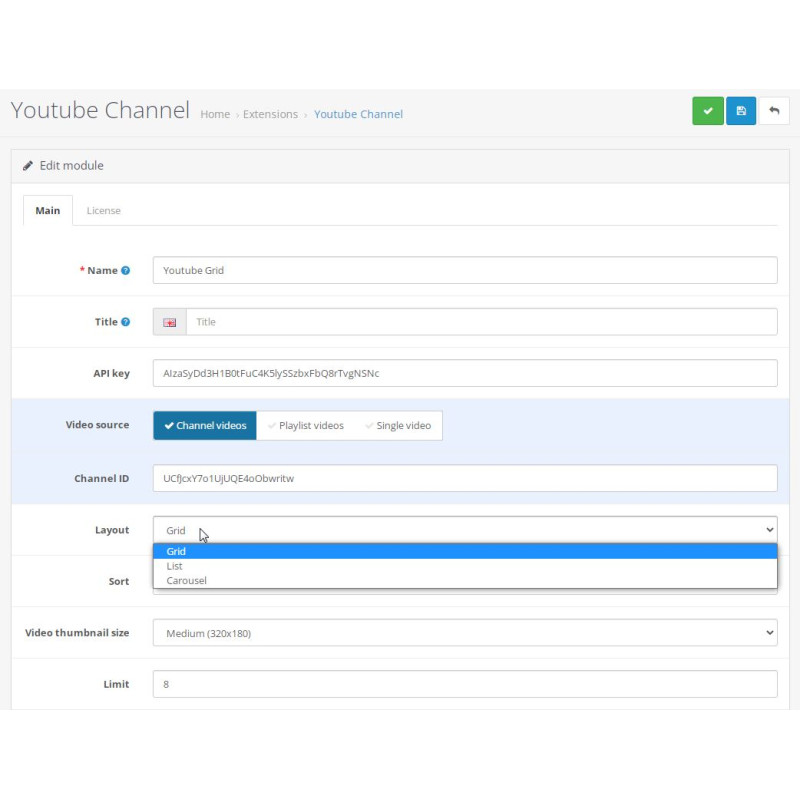
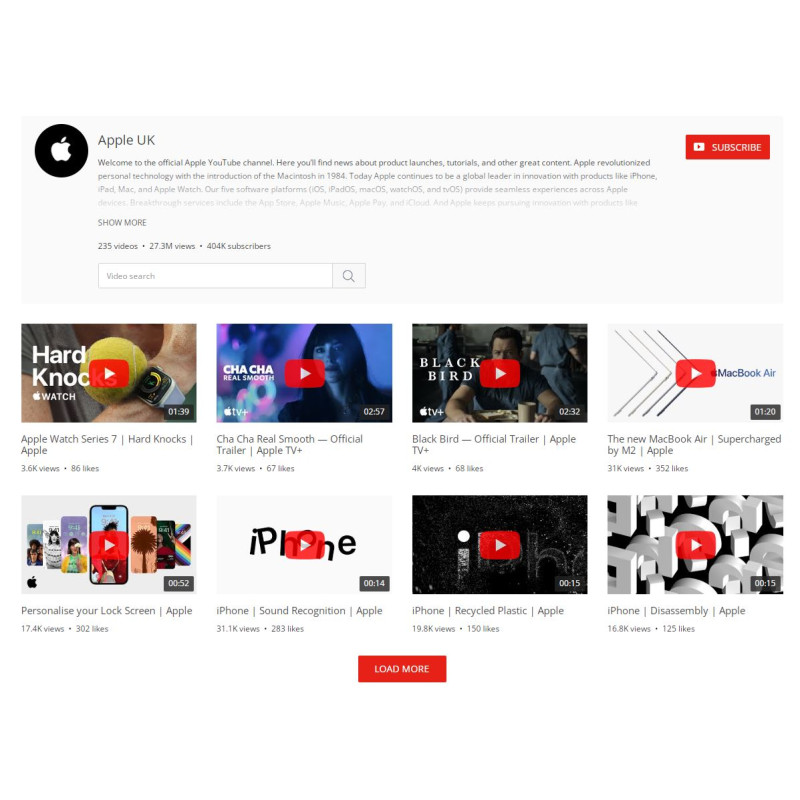
Multiple Display Templates: Render your video galleries in structured grid layouts, compact lists, or responsive carousels with configurable column counts.
-
Zero Impact on Page Speed: Video iframe elements are constructed and loaded dynamically only when a user clicks the play button in a lightbox popup, keeping initial page load fast.
-
Database Caching & CRON Sync: Automatically caches YouTube API data in your local database to eliminate latency. Keep view counts, likes, comments, and new video uploads continuously updated via automated CRON tasks.
-
Multi-Instance Capabilities: Deploy unlimited distinct module instances across homepages, category pages, product tabs, or dedicated video landing pages.
-
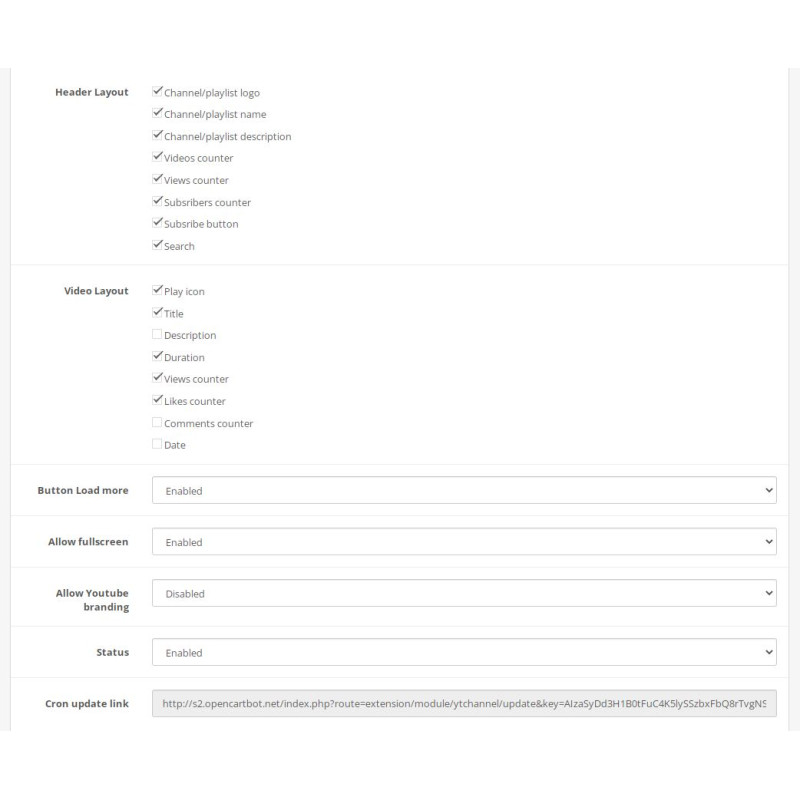
Interactive Channel Elements: Features customizable channel headers, subscriber counts, total view statistics, embedded YouTube subscribe buttons, live video search bars, and AJAX infinite scroll.
-
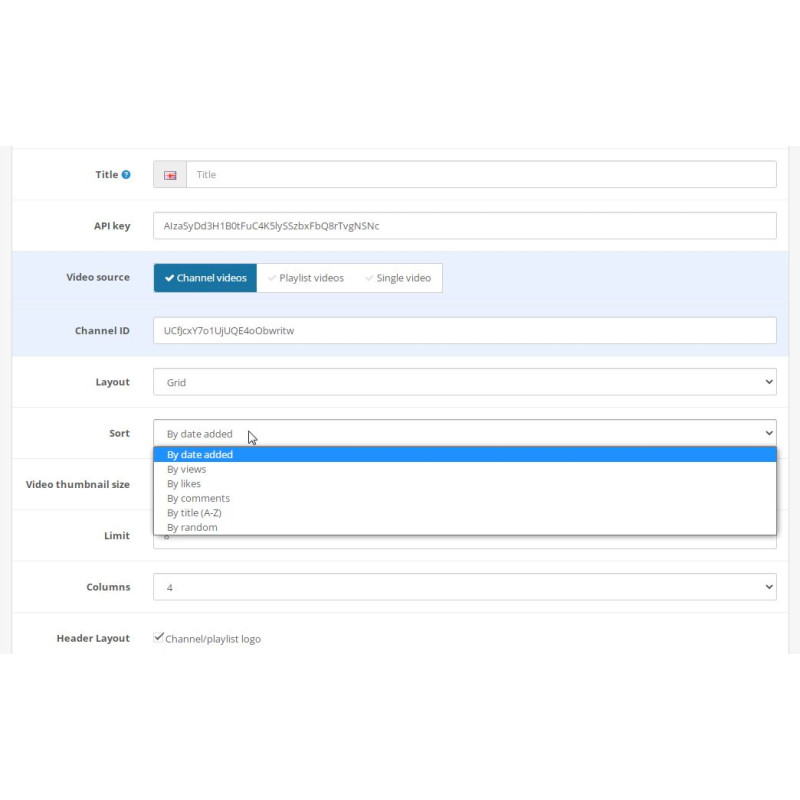
Flexible Sorting Rules: Order displayed videos by release date, view counts, likes, comment activity, title, or random rotation.
Requirements: Operation requires a free YouTube Data API v3 key generated from your Google Cloud Console.
Installation Guide
-
Generate YouTube API Key
Create a project in the Google Cloud Console, activate the YouTube Data API v3, and obtain your API key.
-
Upload Package
Navigate to Extensions → Installer in your OpenCart admin area and upload the .ocmod.zip package file.
-
Enable Module
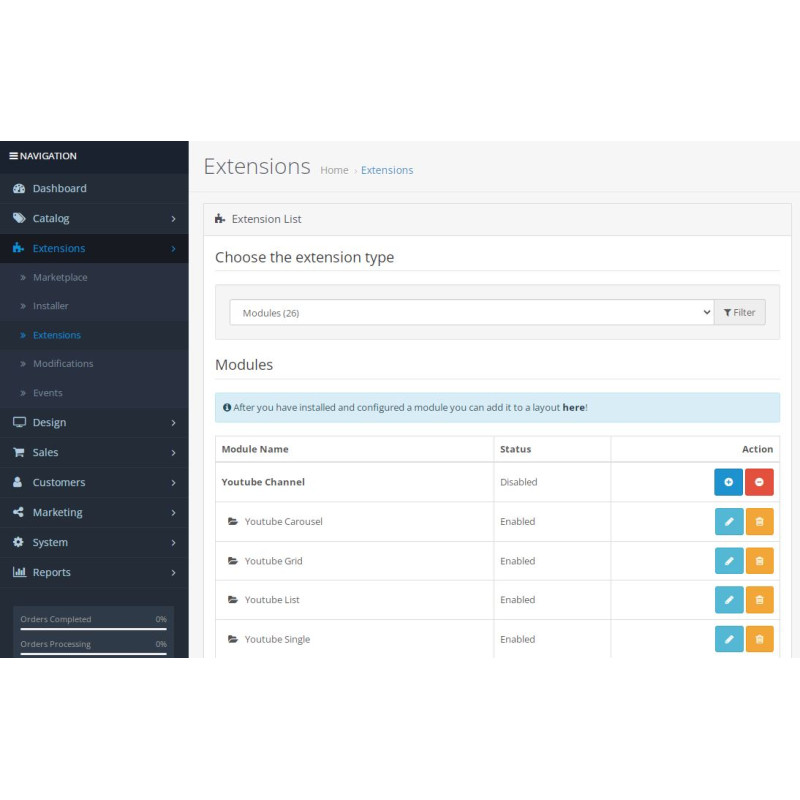
Go to Extensions → Extensions → Modules, locate YouTube Channel Gallery, and click Install.
-
Configure & Save
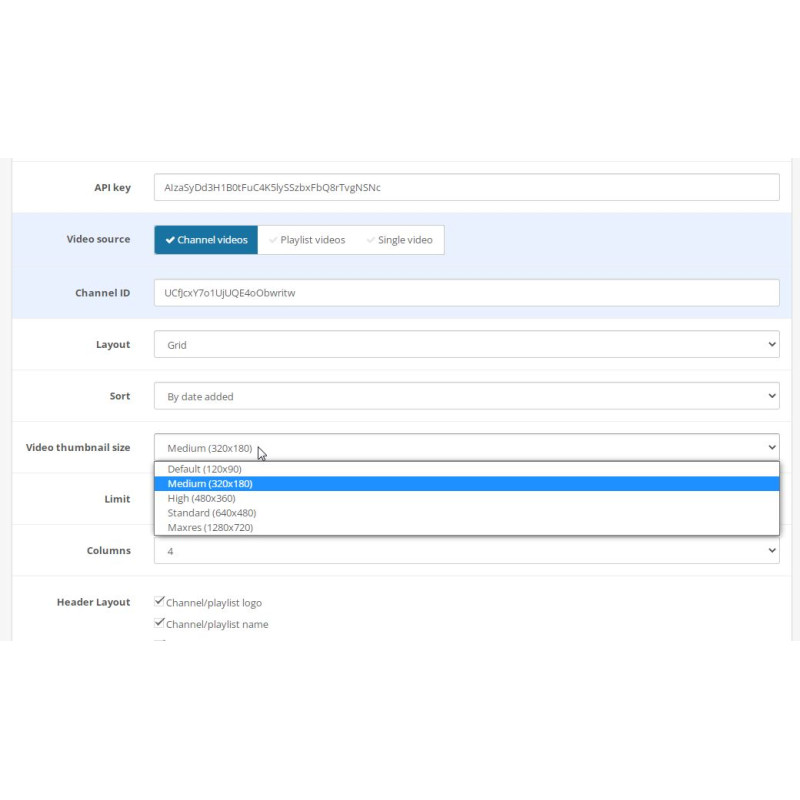
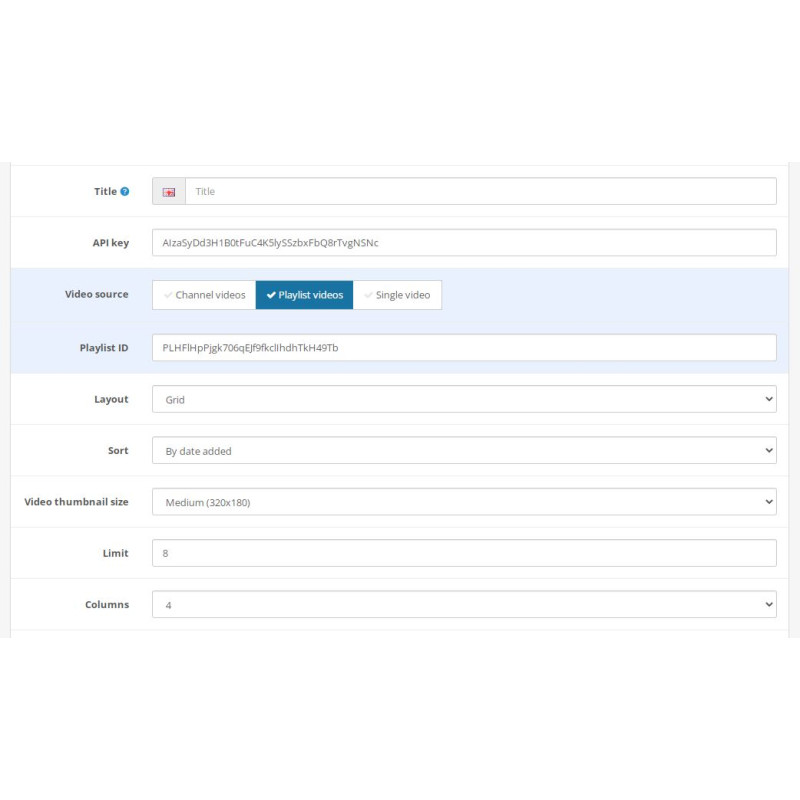
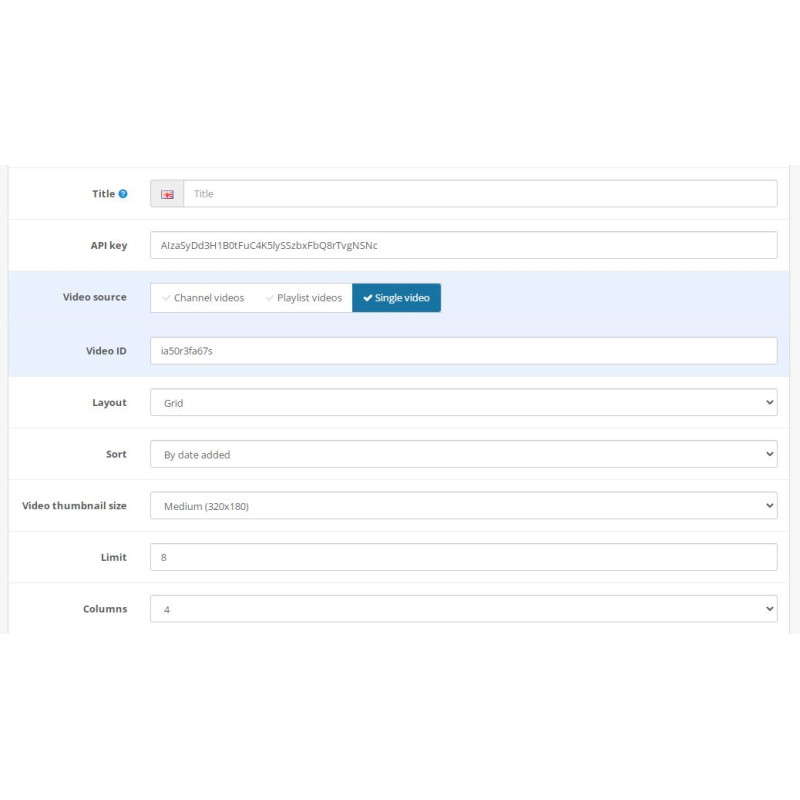
Click Edit on the module. Enter your API key, specify target channel/playlist IDs, set template styles (grid/carousel/list), toggle UI elements, and save.
-
Assign to Layouts & Set CRON Task
Assign the module block to target layouts under Design → Layouts. Copy the provided synchronization URL from the module settings and configure a scheduled CRON job on your hosting server to automate background updates.